Assistly on your phone, no download: in-person meetings, from the browser
By The Assistly team ·
The desktop app was built for video calls, where your computer already has the conversation: the other side's audio, your microphone, your screen. A lot of meetings don't happen there. They happen across a table, in a corridor, on a call someone put on speaker. Until now the honest answer for those was "bring your laptop and open it," which nobody does in a conversation that matters.
So Assistly now runs on your phone, in the browser you already have. Sign in at app.tryassistly.com, tap Start listening, and put the phone face-up on the table. No app store, no install, no new account.
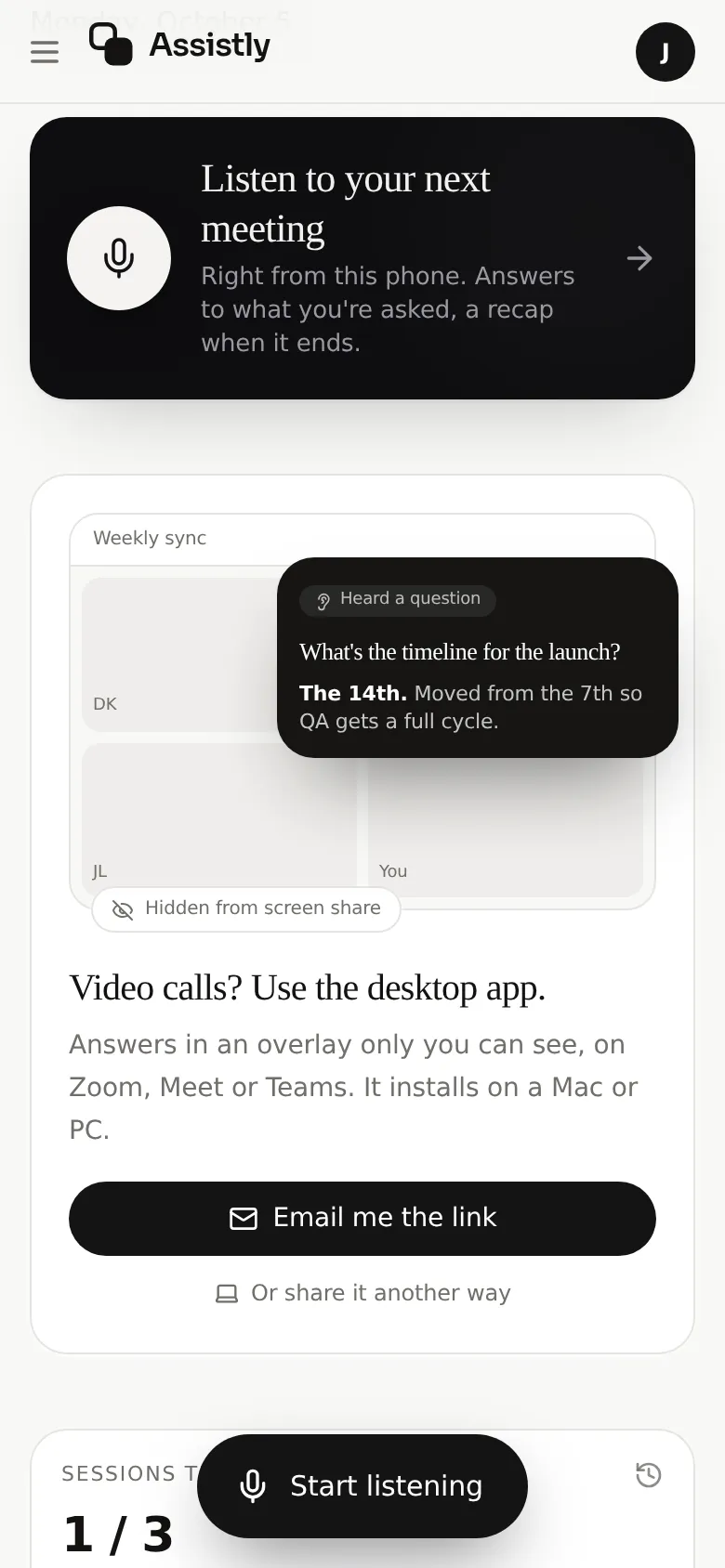
On a phone: listen here, or email yourself the desktop app.
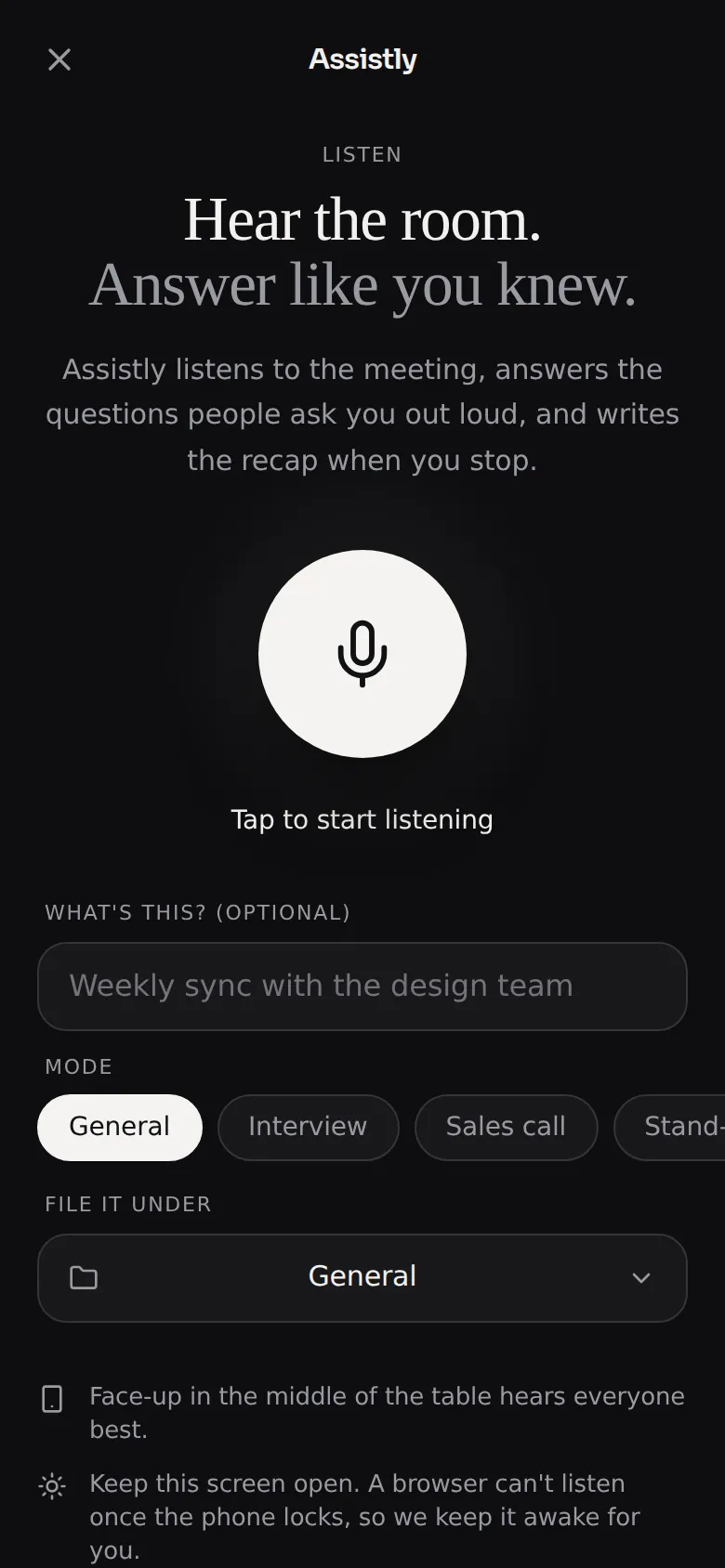
Name it if you like. Then one tap.
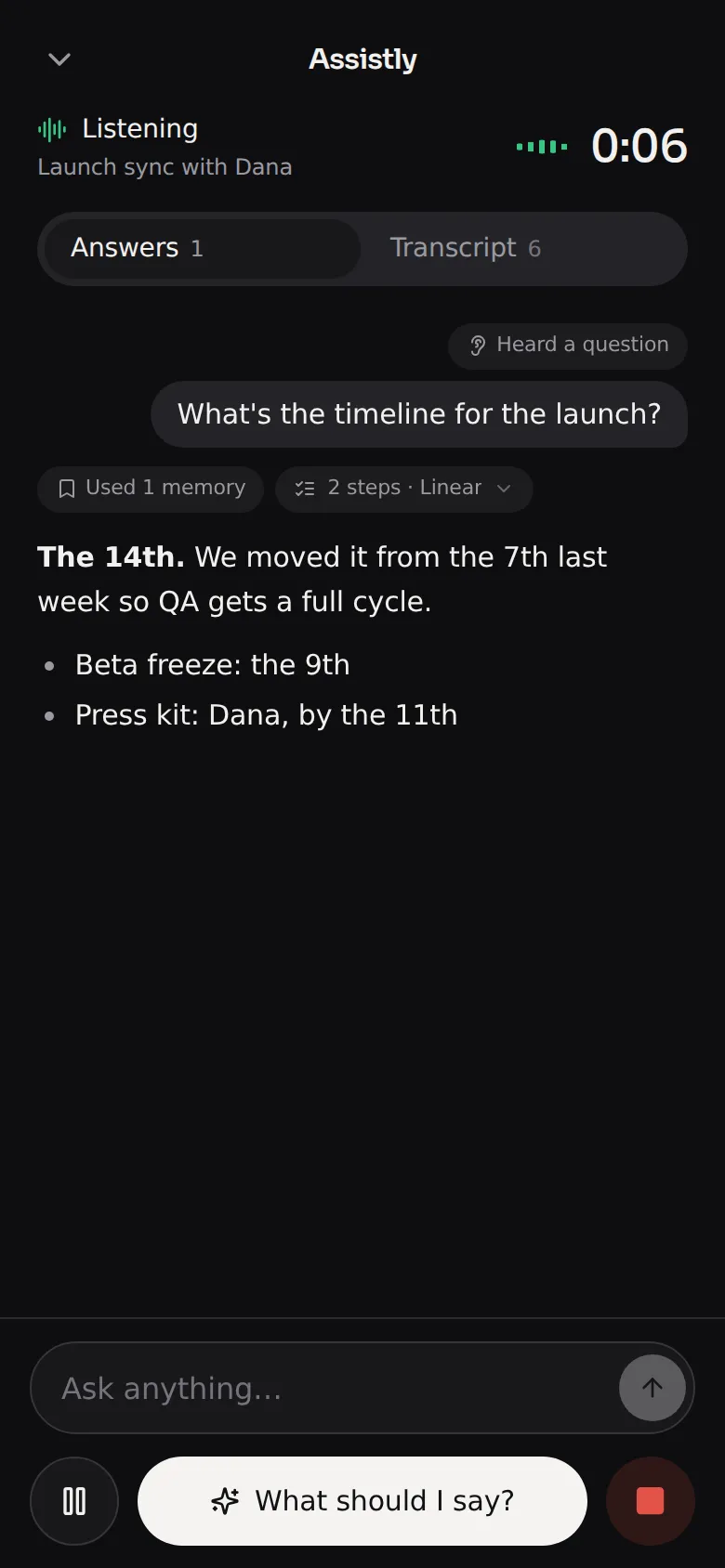
A question lands; the answer is already there.
Answers to what you're asked, as you're asked it
This is the same assistant as the desktop app, and it behaves the same way. When someone asks you something, the question shows up on your screen with the answer underneath, drawn from the conversation so far and from your past sessions, with Auto-assist on by default. You don't press anything.
When nobody's asking and you're the one who needs to say something, tap What should I say? and you get a suggestion built from what's actually been said. You can also type a question at any point, the way you'd ask a colleague sitting next to you.
Every answer shows its work, the same way it does on the desktop: which of your past sessions it searched, which connected tools it checked, each step as it runs. Each new question lands at the top of the screen with room to read the answer as it arrives, and if you've scrolled back to an earlier one, the new answer waits for you instead of pulling the page away.
The transcript is a tab away, with each speaker kept separate, and real names appear in place of "Speaker 2" as the meeting makes them clear.
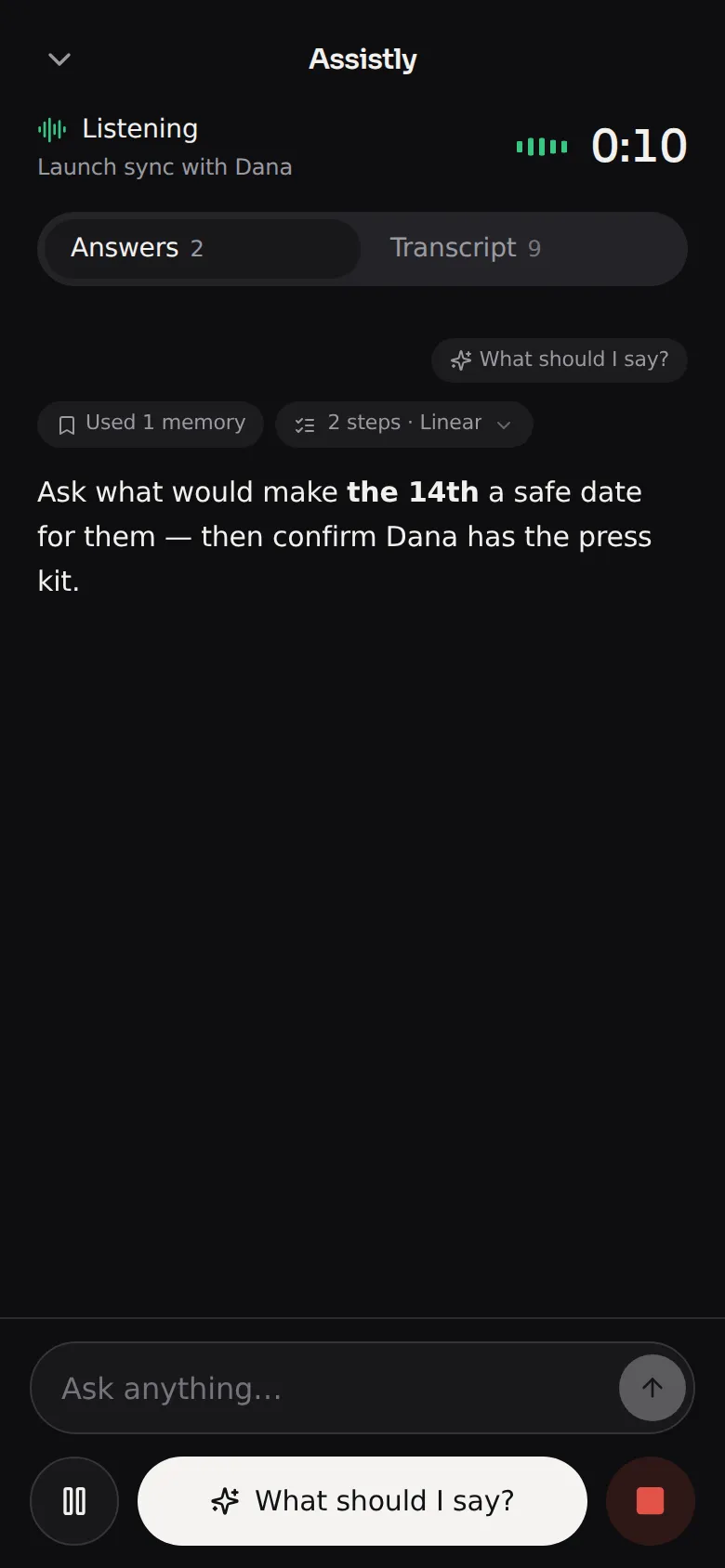
Stuck? “What should I say?” works from the conversation.
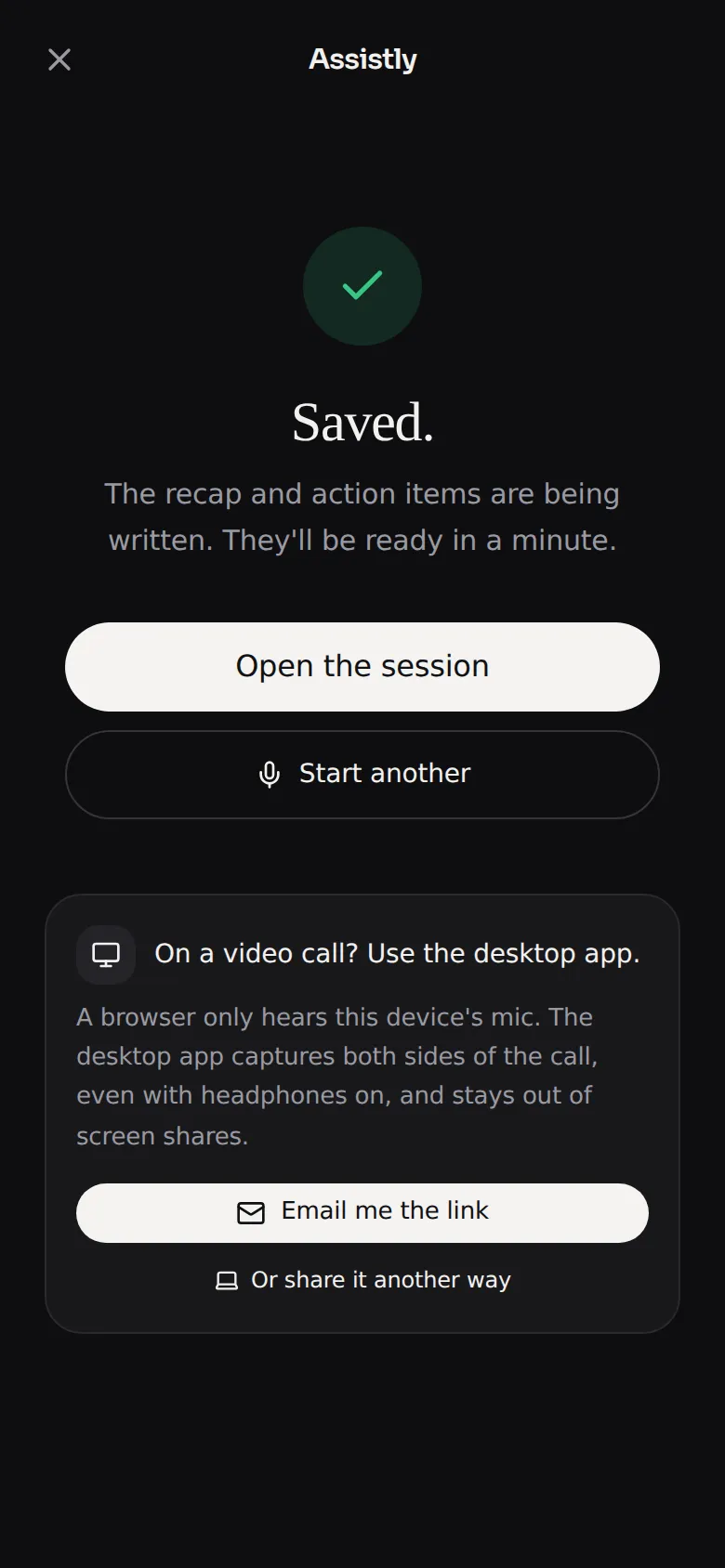
End it, and the recap starts writing.
The recap is where your other meetings are
Tap stop and the session is saved to your account, next to the ones from your computer. The recap and action items are ready a minute later, the meeting files itself into the right project if you chose one, and everything is searchable from Ask your history. A conversation in a hallway is now as findable as one on Zoom.
What we had to get right for a browser
A phone browser is a harder place to run a live meeting than a desktop app, and most of the work went into the parts you'd only notice if they were wrong.
- The screen stays on. A browser can't use the microphone once the phone locks. Assistly keeps the screen awake for as long as a session runs, and the live screen is dark so a phone lying on the table doesn't light anyone up.
- It says so when something stops it. If you switch apps, take a call, or another app takes the microphone, you're told when you come back, instead of finding a gap in the transcript later. Pause releases the microphone entirely, for the part of a meeting that shouldn't be captured.
- A dropped connection costs seconds, not the meeting. The transcript is saved as the meeting goes, a few seconds behind the conversation, and a dropped connection reconnects on its own. If the browser closes the tab outright, reopening Assistly offers to pick the session back up or save it.
- You can leave the screen. Check an old recap mid-meeting and the session keeps running; a small pill brings you back to it.
Audio streams securely to the cloud, where transcription and the answers are produced, the same as on the desktop. You decide how long sessions are kept and can delete any of them at any time. And the usual courtesy applies: let people in the room know Assistly is taking notes.
Keep it one tap away
On iPhone, tap Share, then Add to Home Screen. Assistly gets its own icon and opens full-screen, like an app. On Android, Chrome offers the same from its menu.
Which one to use
Use the phone for the room: in-person meetings, interviews across a desk, a call on speaker. Use the desktop app for video calls: it captures the call's own audio, works with headphones on, and keeps its overlay out of screen shares. Same account, same sessions, either way.
Pricing
Nothing new to buy. On Free, you get 3 sessions a month of up to 15 minutes each, from the phone or the computer, and the phone tells you a minute before the limit so a meeting never ends by surprise. Pro removes both limits: $14.99 a month, or $9 a month billed annually.
Open app.tryassistly.com on your phone before your next in-person meeting. It takes one tap to start.