Windows AI Overlay: Private Help During Calls
By Assistly ·
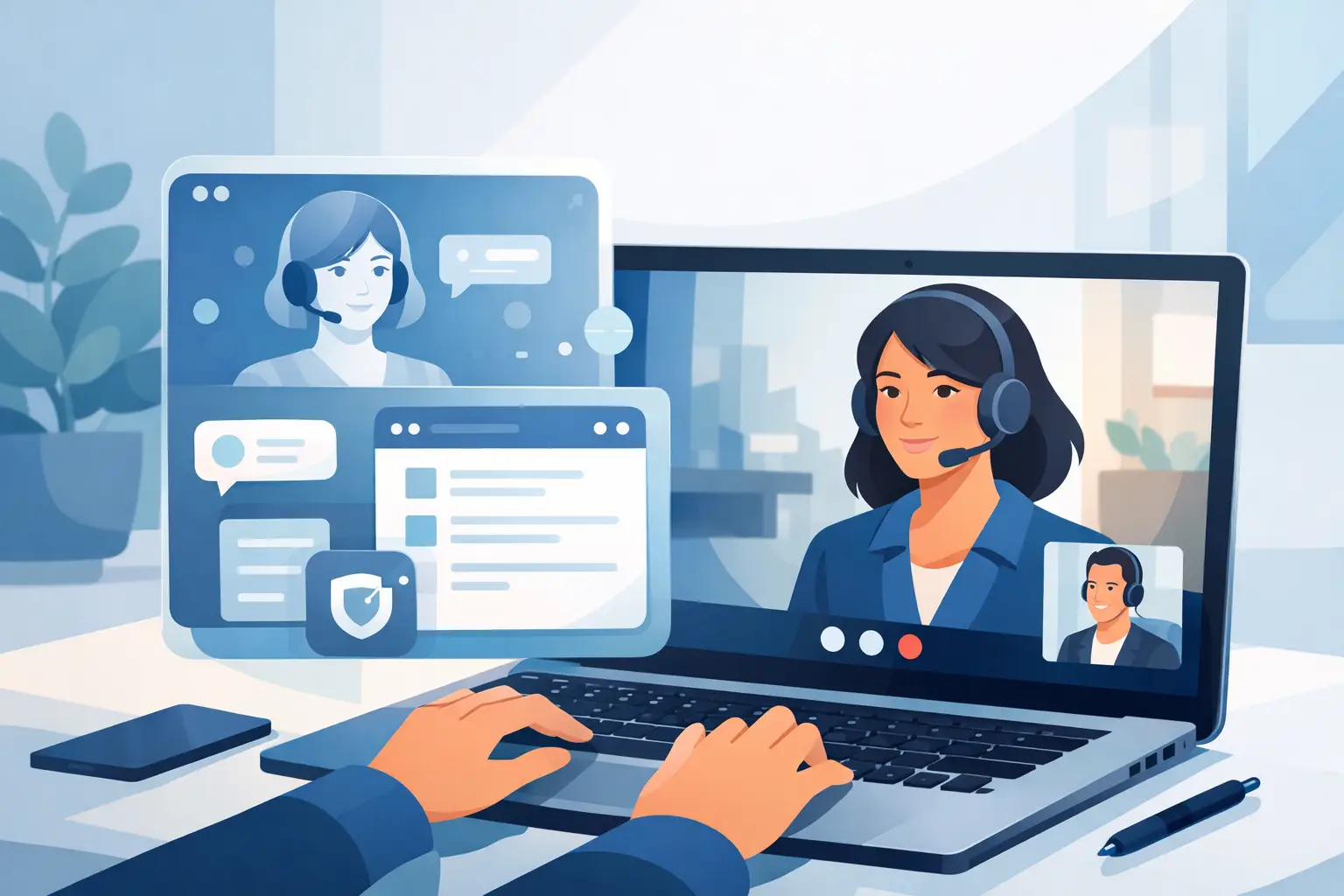
A hard question lands in the middle of a client call. Your notes are somewhere behind six open tabs. The answer is there, but finding it means breaking eye contact, losing the thread, and making the pause obvious. A Windows AI overlay changes that moment. It puts the right context in your line of sight without taking over the conversation.
This is not another meeting bot that joins as a participant, posts a visible transcript, or leaves everyone wondering who is listening. It is a private on-screen layer built for the person who has to perform. You keep talking. The guidance stays in view. Your shared screen stays clean.
What a Windows AI Overlay Actually Does
A Windows AI overlay is a compact desktop interface that sits above the apps you already use. During a Zoom call, Teams meeting, Google Meet interview, Webex presentation, or Slack huddle, it can display live transcript context, talking points, response structures, reminders, and follow-up details while the conversation is still moving.
The value is speed, not spectacle. You should not have to stop a prospect to search a knowledge base or ask an interviewer to repeat a technical question while you reconstruct the answer. A capable overlay hears the conversation, identifies what matters, and surfaces useful material fast enough to affect the next sentence.
For a sales rep, that might mean objection-handling language when pricing comes up. For a candidate, it could be a structured way to explain a past project using the role, action, and outcome. For a manager, it may be a reminder to confirm an owner and deadline before the meeting ends.
The screen is not the product. Better performance under pressure is.
Visible to You, Not Part of the Presentation
A normal desktop window is a liability in a shared meeting. If you share the wrong display, switch tabs too quickly, or start a recording, private notes can become public in seconds. That is why the technical behavior of an overlay matters as much as the AI behind it.
Windows provides capture-exclusion capabilities that software can use to request that a window be omitted from common screen-capture paths. When implemented correctly, the overlay remains visible on your monitor but is designed to stay out of supported screen shares, recordings, and capture frames. Your audience sees the deck, spreadsheet, browser, or demo you intended to show - not your live guidance.
That separation creates a more natural workflow. You do not need to paste prompts into a meeting chat, pin a note app next to your presentation, or keep glancing at a phone. The context is where you need it, without becoming part of the meeting itself.
There are limits. Capture behavior can vary by Windows version, conferencing platform, display configuration, remote-desktop setup, and the capture method selected. An overlay should be tested in the exact environment you use before a consequential call. Privacy features should also support legitimate professional preparation and confidential note-taking, not bypass an employer’s, school’s, or assessment provider’s stated rules.
Control starts with knowing what your tools do and where their boundaries are.
Why Live Context Beats Better Notes
Most professionals already take notes. The failure point is timing.
Notes written before a meeting are static. Notes written after a meeting are late. The difficult part is responding when a buyer asks for proof, when a hiring manager changes direction, or when an engineer challenges an assumption. That is where a live overlay earns its place.
Speaker-aware transcription gives the assistant a running understanding of who said what. With that context, it can distinguish a casual comment from a request, an objection from a buying signal, or a vague commitment from an action item. The result should be concise guidance, not a wall of AI text competing for your attention.
The best prompts are specific. Instead of telling you to “build rapport,” the overlay should help you acknowledge the concern, clarify the underlying requirement, and move to a credible next step. Instead of producing generic interview advice, it should connect the question to your own experience, projects, resume, and prepared stories.
That is the difference between sounding assisted and sounding prepared.
A Better Pattern for Using Prompts
Keep the overlay small enough that it supports attention rather than stealing it. Read the structure, not every word. Use the live prompt to organize your response in your own voice.
If a customer says, “We already have a solution,” an effective response is rarely a scripted rebuttal. You need to recognize the status quo, ask what is working and what is not, then decide whether there is a real reason to continue. The overlay can give you that framework in a glance. You provide judgment.
The same applies in interviews. When you are asked about a failure, the goal is not to recite a polished answer from a screen. It is to give a truthful example with a clear decision, a lesson, and an outcome. AI can keep the structure sharp. It cannot replace credibility.
The Windows AI Overlay Workflow
The practical workflow should be simple enough to use when your calendar is packed.
First, set your context before the call. Load the material that makes the conversation specific: your CV for an interview, account notes for a sales meeting, technical documentation for an assessment, or project decisions for a stakeholder review. A generic assistant gives generic help. Personal source material gives it something real to work with.
Second, start the session and position the overlay where your eyes can reach it without abandoning the camera. A transparent or click-through option can help keep your working app accessible. Custom hotkeys matter here too. You want to show, hide, or reposition the layer without fumbling through menus while someone waits.
Third, let the conversation create the record. After the meeting, a searchable transcript, summary, and assigned action items convert live discussion into follow-through. You should leave with more than a vague memory and a half-finished notebook page.
Assistly is designed around this operating rhythm: hear the call, surface private guidance, and turn the conversation into accountable next steps.
Where It Creates the Most Leverage
Job interviews reward clarity under time pressure. A Windows AI overlay can keep your strongest examples, company research, and role-specific themes close at hand, especially when questions shift from behavioral experience to technical depth. It helps you avoid the blank pause. It does not make up experience you do not have.
Sales calls move quickly between discovery, qualification, objections, product questions, and commitments. Live guidance can help an account executive stay disciplined: ask the next question, confirm the business impact, capture the objection, and close on a concrete action. This is particularly useful when the rep is managing a complex account without a solution consultant in the room.
Managers and consultants benefit differently. Their challenge is often synthesis. They need to notice decisions, unresolved risks, conflicting statements, and ownership gaps while still leading the room. A private overlay can preserve those details and make the final five minutes of a meeting more decisive.
Technical candidates and engineers can use the same model for structured thinking. In a design discussion, the useful prompt is not a hidden answer. It is a checklist: clarify requirements, state assumptions, identify trade-offs, explain failure modes, and summarize the decision. That structure improves communication even when the problem has no obvious solution.
What to Look for Before You Trust One
Do not choose an overlay because it produces flashy demos. Choose it based on what happens when the call becomes complicated.
Look for reliable audio handling across your microphone and call audio, speaker-level transcript context, and guidance that can use your own documents rather than internet-flavored generalities. Check whether the interface can stay unobtrusive, whether it supports keyboard control, and whether the post-call output makes follow-up easier instead of creating another system to manage.
Privacy deserves the same scrutiny. Understand what audio is processed, how session data is handled, who can access it, and which capture scenarios the product supports. Test it before using it with client material, internal strategy, or sensitive career conversations. If your organization has policies for recording, AI tools, or confidential information, follow them.
A useful overlay gives you more control, not a new source of uncertainty.
The strongest professional advantage is rarely a perfect line fed into your ear. It is the ability to stay present, recognize what matters, and respond before the moment passes. Put the context where you can see it. Keep the conversation where it belongs.